

FakeTax manifest.json
The sample app’s manifest: five buttons, two panels, a sidebar section, and event subscriptions.
Extending Campfire
What each extension does and how your server handles it.
Applying a manifest
Creating a new app
On Settings > Developer > Apps, click From Manifest (or Create from Manifest if you have no apps yet), paste your manifest, and click Create App.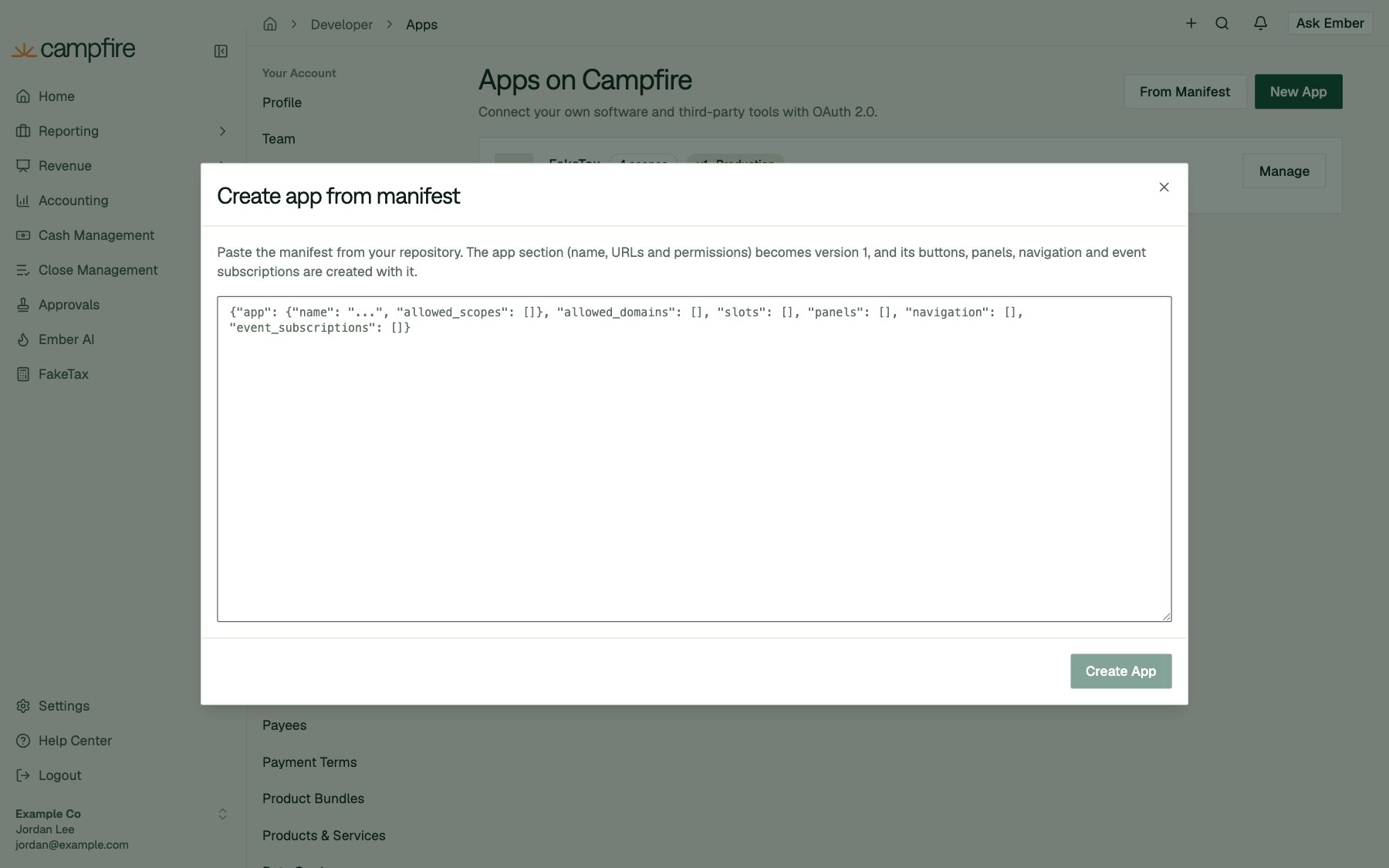
app section becomes version 1 in production straight away, and the extensions are created with it. Campfire then shows the client secret once, as when you create an app by hand. app.allowed_scopes is required when creating from a manifest. Use [] for an app with no permissions.
Updating an existing app
Open the app’s Manifest tab. It shows the app’s current manifest, which you can copy into your repository. Paste the new version and click Save Manifest.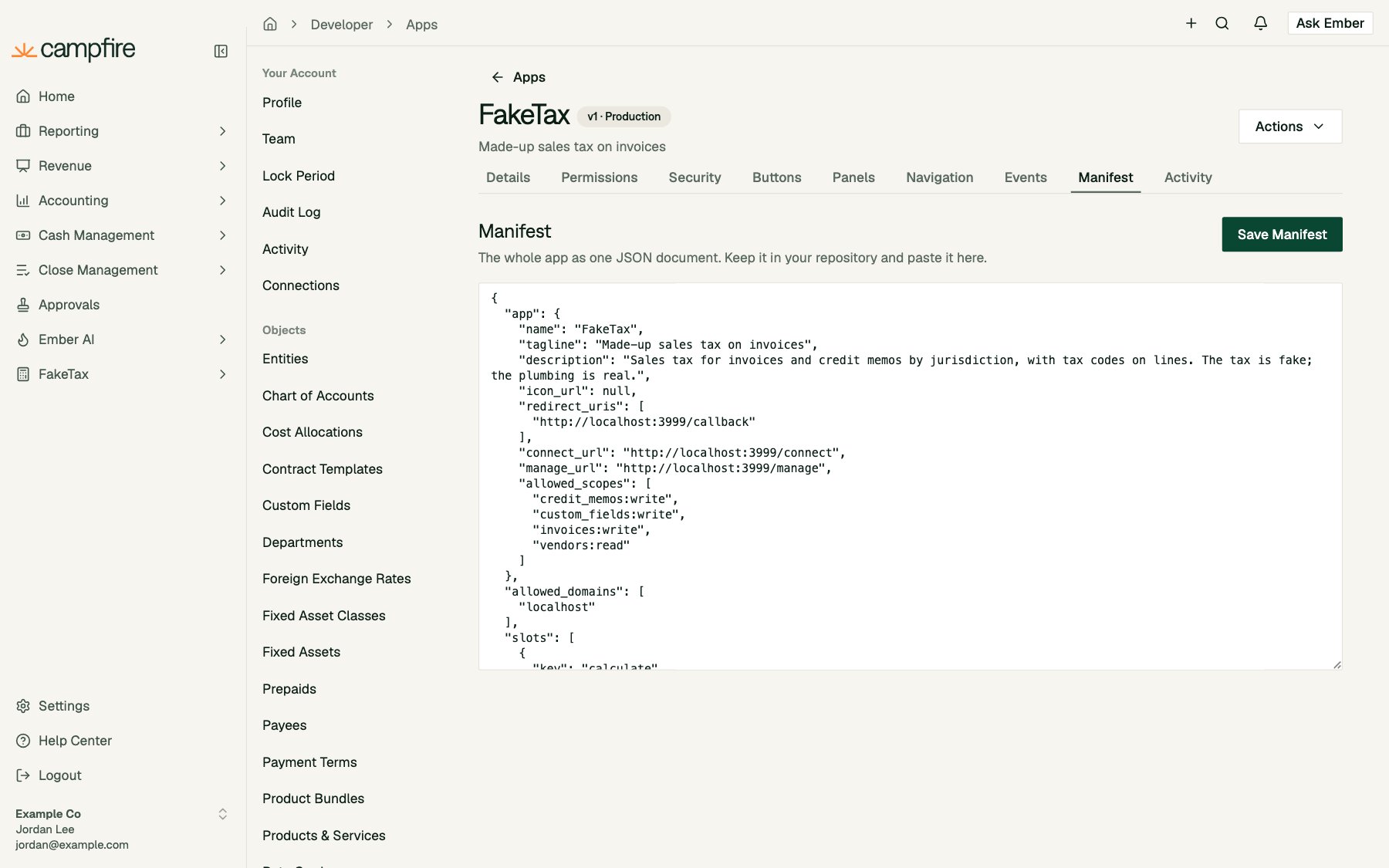
- The
appsection is versioned. Fields that differ from the version you’re editing go to the app’s development version, which goes live only when you promote it. If nothing inappchanged, no draft is opened. - Everything else takes effect immediately, in every workspace where your app is connected: allowed domains, buttons, panels, navigation, and event subscriptions.
- The manifest is the full list. Buttons, panels, and navigation entries are matched by
key, and subscriptions byendpoint_url. Anything that isn’t in the manifest is deleted. - Workspace settings survive. Because items are matched by key, a workspace admin’s switches and style choices stay in place when you re-apply. Changing a key creates a new item, which loses them.
- Allowed domains are applied first, so one manifest can add a domain and the button that uses it.
Over the API
The same operations are available to a workspace admin’s session athttps://api.meetcampfire.com:
App management endpoints are never available to OAuth app tokens.
Reference
A manifest is a JSON object with up to six sections:app
The app’s versioned details. Only these keys are allowed:
allowed_domains
Up to 20 host names. example.com matches only that host. *.example.com matches its subdomains, but not example.com. Every URL in the sections below must be on one of these hosts.
slots (buttons)
action_config by action type:
URL templates can be up to 1,024 characters and use
{{record.id}}, {{record.number}}, {{customer.id}}, and {{install.<key>}}. {{record.*}} isn’t allowed on list_header.
panels
navigation
A list of top-level entries. Each entry can hold one level of items:
At most 30 entries in total, counting items.
event_subscriptions
Errors
Saving an invalid manifest returns400 with a detail that says where the problem is:
A URL that isn’t on an allowed domain, a topic your scopes don’t cover, or a
{{record.*}} placeholder where it isn’t allowed is reported against the item it’s in.
Example: FakeTax
This is FakeTax’s completemanifest.json. It runs on localhost, so every URL uses http://localhost:3999. In production, use your own https host.
manifest.json
manifest.json
manifest.json
- Five buttons on invoices: Calculate tax (a secondary webhook button on draft and open invoices, with a confirmation), Calculate FakeTax (the same webhook for selected rows on the list), Tax breakdown (a large drawer), View in FakeTax (a link), and FakeTax report (a link in the row menu).
- Two panels: the breakdown on the invoice page and edit modal, and settings on the invoice list.
- A sidebar section with three pages.
- One subscription for invoice and credit memo changes.